Connecting Google Ads to ClinicMonk
This guide walks you through linking your Google Ads account to ClinicMonk. Connecting them ensures accurate tracking for your reports, dashboards, lead attribution, and overall campaign performance.
Prerequisites: Verify that your Google Ads account is active and that you have the necessary access and permissions before beginning.
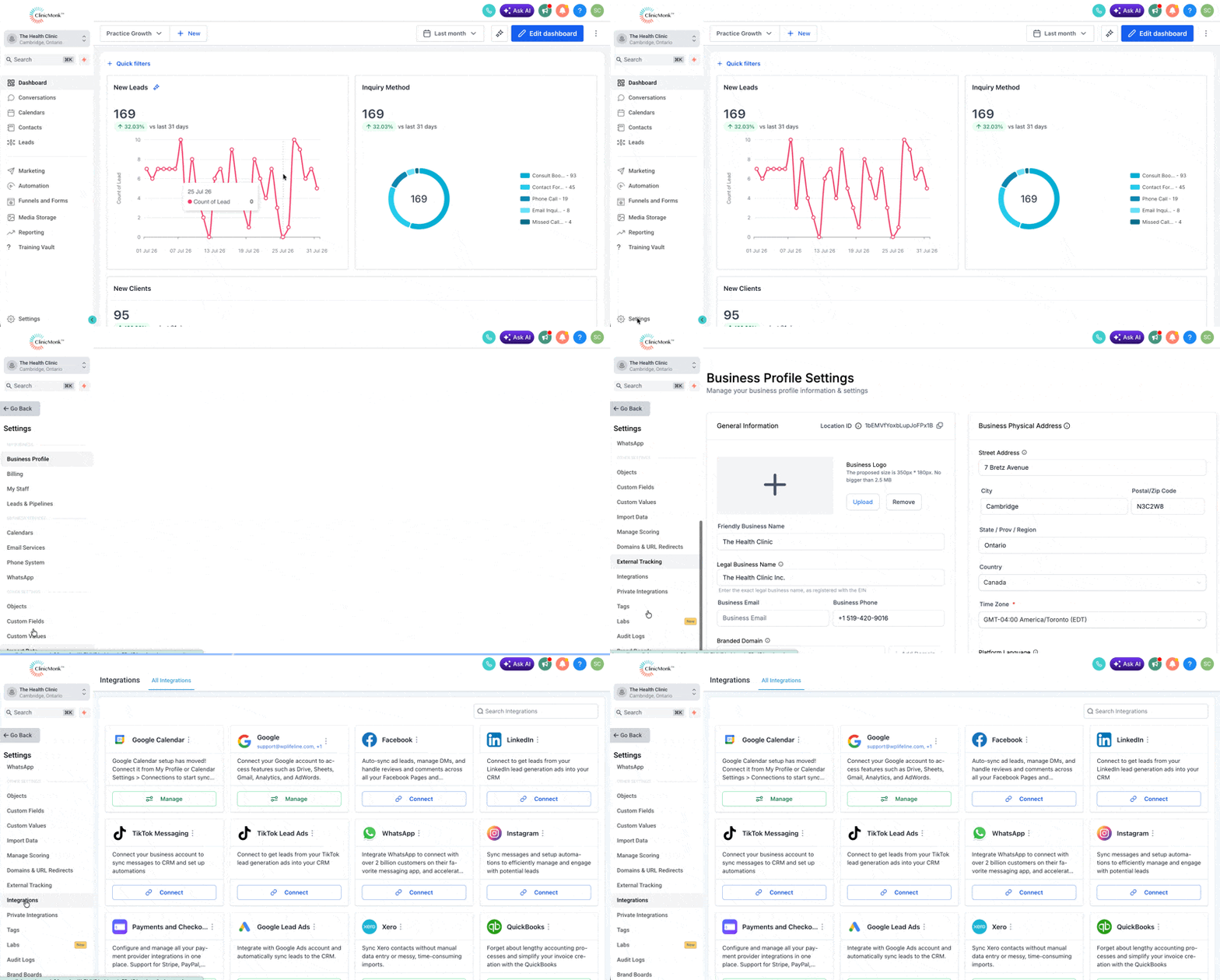
Step 1: Open Settings
- From the left-hand menu, click Settings.
- Then click Integrations.
Step 2: Connect "Google"
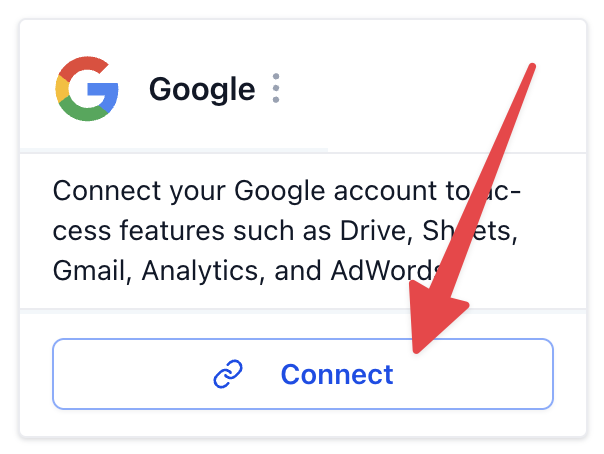
- Locate the Google integration.
- Click Connect.
- A Google sign-in/authorization window will open, which you need to complete.
- Select the Google account that has access to your Google Ads account.
- Select the Ad Words Client and MCC Account IDs, then save.
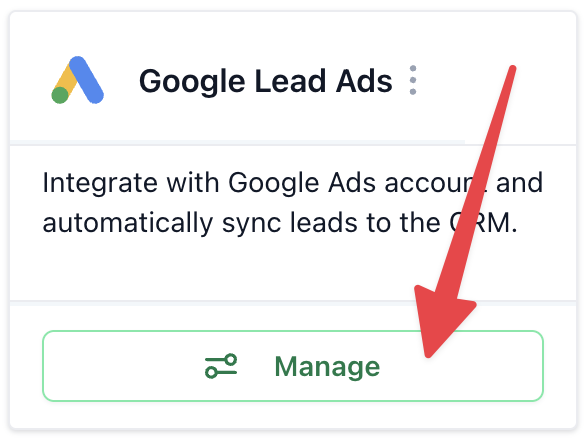
Step 3: Connect "Google Lead Ads"
- Locate the Google Lead Ads integration.
- Click Manage.
- Before clicking Connect, you may need to click Install > Proceed to Install > Allow and Install, then enter a name for this Google Ads account and an email, then Continue.
- A Google sign-in/authorization window will open, which you need to complete.
- Select the Google Account that has access to your Google Ads leads.
- Select the correct GoogleAds Account number.